Overview
SQL Server plays an integral part of its users who creates their own database where they can store and retrieve data whenever required. Sometimes, the user may face issue while trying to access their database due to crash of SQL Server. To overcome such issue and to make the database accessible, we need to be able to make the database run on another physical server. For this, we can recreate the entire SQL Server environment on an existing server instead of building a new server and installing SQL again.
Things to keep in mind before Rebuild SQL Server Database
- In order to recreate the SQL environment, we will use an existing SQL Server that is already setup.
- Since the process involves restoring the master, msdb and user databases, we need to make sure that both the source and target SQL Servers must be on the exact service pack.
- If the Source and Target environment are not similar, the restore of master database on the target server will not be possible.
- To check the version of the target environment, use command ‘Select @@version’ in SSMS.
- For version of Source environment, we can use a master backup file to check the SoftwareVersionMajor, SoftwareVersionMinor and SoftwareVersionBuild using the command ‘RESTORE HEADERONLY FROM DISK ='F:\Backup\master_backup_2015_10_9_000001_7422453.BAK'
- Ensure that both the environments have the same version before beginning the rebuild process on the target server.
- As an example for this page, we will use SQL 2008 SP2 (10.0.5000) for both source and destination.
- In Source- master, model and msdb databases are located on drive D while tempdb is on a dedicated drive E with initial size of 10GB.
- In Target- server has only one drive C without enough space to create 10GB file for tempdb.
Rebuilding SQL Server Database after a Failure
Here are the steps that need to be followed for rebuilding SQL Server database after a Failure:
- Shutdown the SQL Services like SQL Server, Agent, SSIS, etc. on the target SQL Server using SQL Server Configuration Manager.
- Go to command window by typing cmd in the search box. Use the command
‘sqlservr -m’ - Open a new command prompt to start SQLCMD and use the following command to restore the master database:
- The instance of SQL Server, which was started in single user mode stops after the completion of master database restore. While trying to run ‘sqlservr -m’ again, SQL Server will not start as master database has the reference that model and msdb are on drive D and tempdb is on E drive. Since the target server does not contain Drives D and E, we will use the following command:
‘sqlservr –c –m –f –T3608’
Where -c >> Starting SQL not as a service
-f >> starting with minimum configuration
-T3608 >>trace flag 3608 will skip automatic recovery of all databases except master database - We can change the location of the model and tempdb by using below commands after starting SQLCMD. We can also resize tempdb as well.
- We will stop the SQL Server from the CMD window by either closing it directly or using CTRL+BREAK. Restart the SQL Server with the help of SQL Server Configuration Manager.
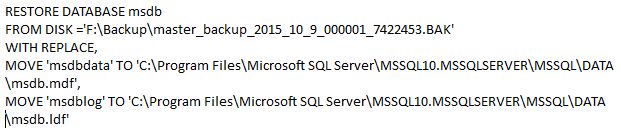
- We will run the following command either on SSMS or SQLCMD to restore msdb database
- In the end, we will restore the user databases and start the SQL Server Agent.


Conclusion
In the blog, we have been discussing ways on how to rebuild SQL Server database after a failure using existing server instead of creating a new one. After restoring the master and msdb databases, we were able to recover all the system information such as logins, schedules, jobs etc. without the need to recreate them. This method saves time since we do not need to build the entire server and install SQL Server all over again. However, if this methods fails to rebuild SQL Server Database then you can also take the help of third party utility like SysTools SQL Recovery

